Download
Version 0.1.0, 1.9 MB, published 2026-11-20. Windows 10 or 11, 64-bit.
SHA-256 of the zip: 76fe4b19de70113a387734d08c88bf26c74b2e953d29e4e93068222dadfe0e76
The button first runs Cloudflare's check that you are a person. Most of the time you see nothing; sometimes Cloudflare asks you to click a box.
An AI agent helping you install Rikuy cannot download it for you: the check is there so that a person downloads it, on the computer where Rikuy goes. Your agent sends you to this page and guides you through the steps below.
What you need
- A computer with Windows 10 or 11, 64-bit.
- An administrator of that computer: Windows asks for one in step 5.
- A Rikuy account to approve the computer from, at console.rikuy.si.
Two Windows warnings, and why
Rikuy’s installer is not signed with a Windows publisher certificate yet. Windows cannot tell who made it, so it shows two warnings: a blue “Windows protected your PC” screen, then a question about an “unknown publisher”. Both are expected with this version, and the steps below show each one.
Before you go past them, check that the file is Rikuy’s:
- Download it only from this page, with the button above. It has no other address.
- In PowerShell, in the folder where you saved it, run
Get-FileHash rikuy-setup.zip. The hash it prints must be the SHA-256 shown above. If it is different, do not open the file.
Steps
- Download the zip. Use the download button above, on the computer where Rikuy goes. Cloudflare first checks that you are a person: usually you see nothing, sometimes it asks you to click a box. Microsoft Edge downloads it with no warning. If an AI agent is helping you, this is the step you do yourself.
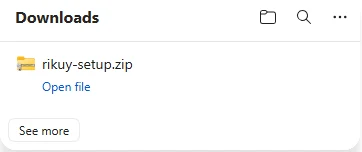
- Open the zip and double-click rikuy-setup.exe. In the downloads panel, choose Open file. The zip opens as a folder with one file,
rikuy-setup.exe: double-click it. You do not need to extract it first. (Extracting first also works, and Windows may ask one more question.)
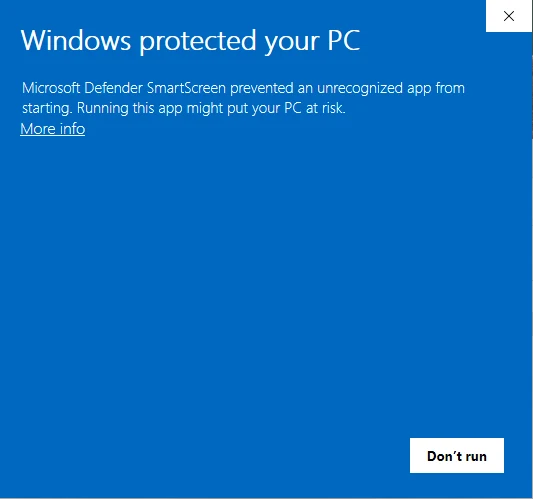
- Choose More info. Windows shows “Windows protected your PC” (Microsoft Defender SmartScreen). Choose More info, under the text.
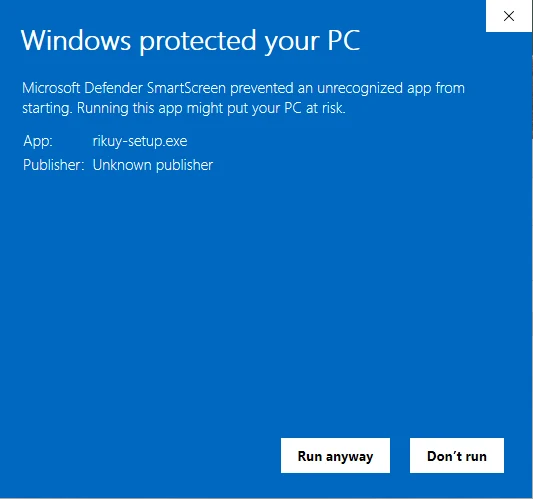
- Choose Run anyway. The screen now shows App: rikuy-setup.exe and Publisher: Unknown publisher. Choose Run anyway.
- Choose Yes. Windows asks: “Do you want to allow this app from an unknown publisher to make changes to your device?”, for
rikuy-setup.exe, Publisher: Unknown. The highlighted button is No: choose Yes.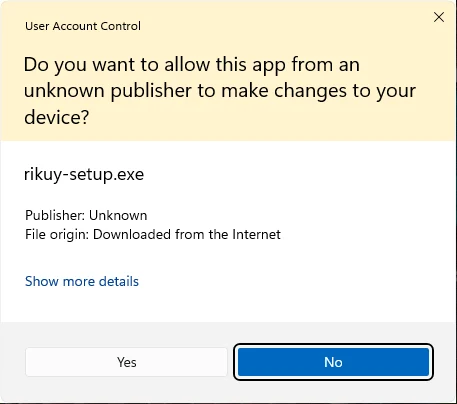
- Rikuy installs and opens “Pair this computer”. It takes a few seconds. The window shows a QR code, an address that ends in a code of eight characters (
console.rikuy.si/p/XXXX-XXXX), a Copy button and “Open in this computer’s browser”. In this picture the QR code and the code are blurred.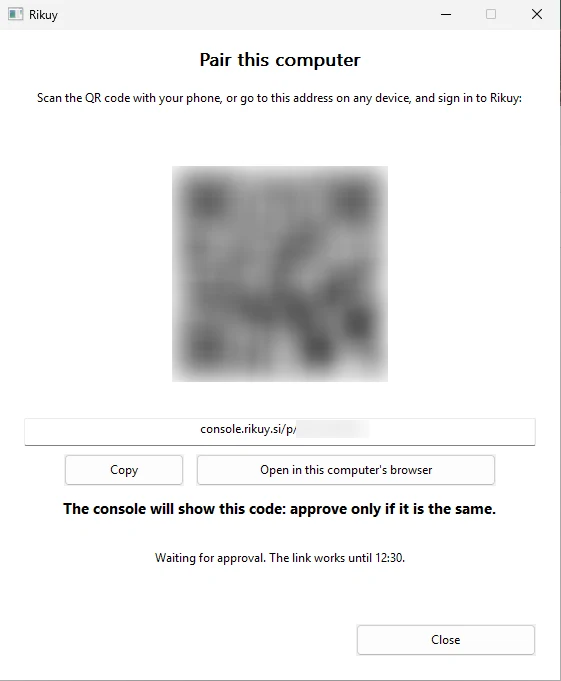
- Approve the computer from your Rikuy account. On a phone, scan the QR code. Or, on any device, go to
console.rikuy.si/pand type the code. Sign in to Rikuy. The page shows the code and the computer’s name: approve only if the code is the one on the computer’s screen. The code works once, for 30 minutes. (This picture shows the page in Spanish, with the code blurred.)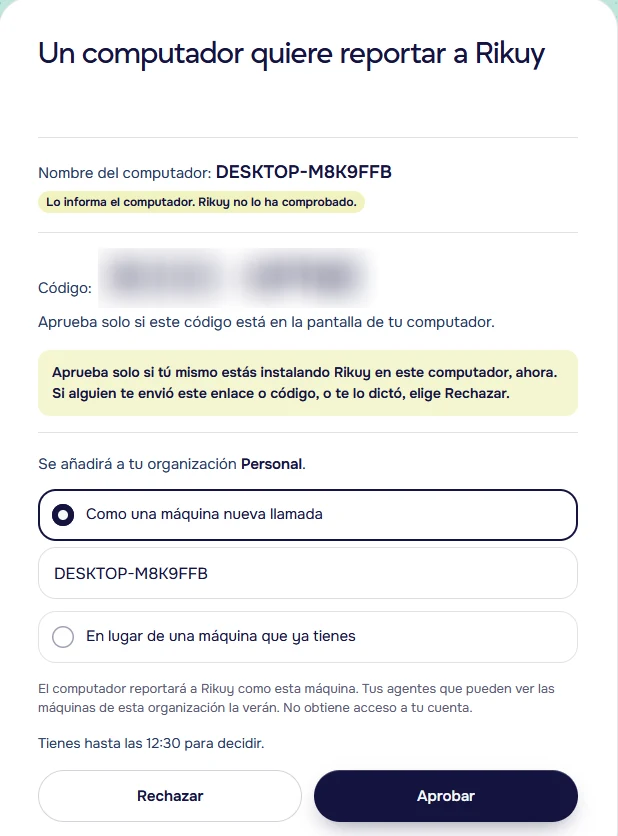
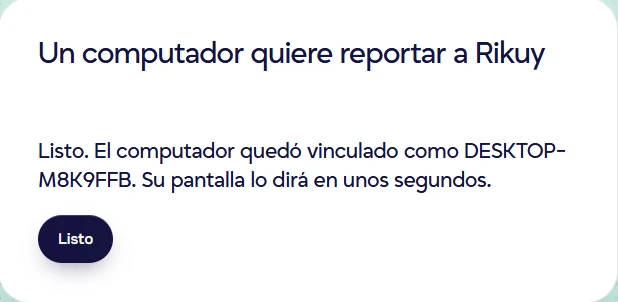
- Done. The window says the computer is paired, with its name, and that Rikuy is reporting: “It starts with Windows; you do not need to do anything else.” From then on Rikuy runs by itself as a Windows service named Rikuy, and needs nobody signed in.

What Rikuy installs
- A Windows service named
Rikuy. - The folders
C:\Program Files\RikuyandC:\ProgramData\Rikuy. - An entry “Rikuy” in Settings, Apps, Installed apps. Uninstall it there to remove Rikuy.
If something goes wrong
- The window shows a short code. Under its sentence, in parentheses. Tell us that code when you ask for help.
- See what Rikuy is doing. Open a terminal as administrator and run
"C:\Program Files\Rikuy\rikuy.exe" status. - The code expired. Start pairing again with
rikuy pair, in the same kind of terminal:"C:\Program Files\Rikuy\rikuy.exe" pair. - Running the installer again. It is safe, and it keeps the pairing.
- Smart App Control. On some Windows 11 computers Smart App Control is on. There, Windows does not run an installer that is not signed, and Rikuy says so: that computer cannot install this version.
What this version does
In version 0.1.0, Rikuy on the computer reports to your Rikuy account that it is installed and running. Finding the recorder and connecting cameras are not in this version yet: Set up Rikuy describes how they will work.